
Add activity enrolment
In Activity enrolment you can create enrolment for trial lessons, matches, kit orders or other one-off activities.
Where to find this
In the left-hand menu, select Activities, then Activity enrolment (paid).
The header shows the English breadcrumb “ACTIVITY MANAGEMENT”. The heading is Activity enrolment, and the description is: "Manage trial lessons, matches, kit orders and other one-off activities." The buttons are Reload and Add activity enrolment. The tabs include In progress and Archived. If none have been created yet, it shows No activity enrolment created yet, and "After you create an activity, you can manage applications and payments here."
How to add an enrolment activity (step 1: activity details)
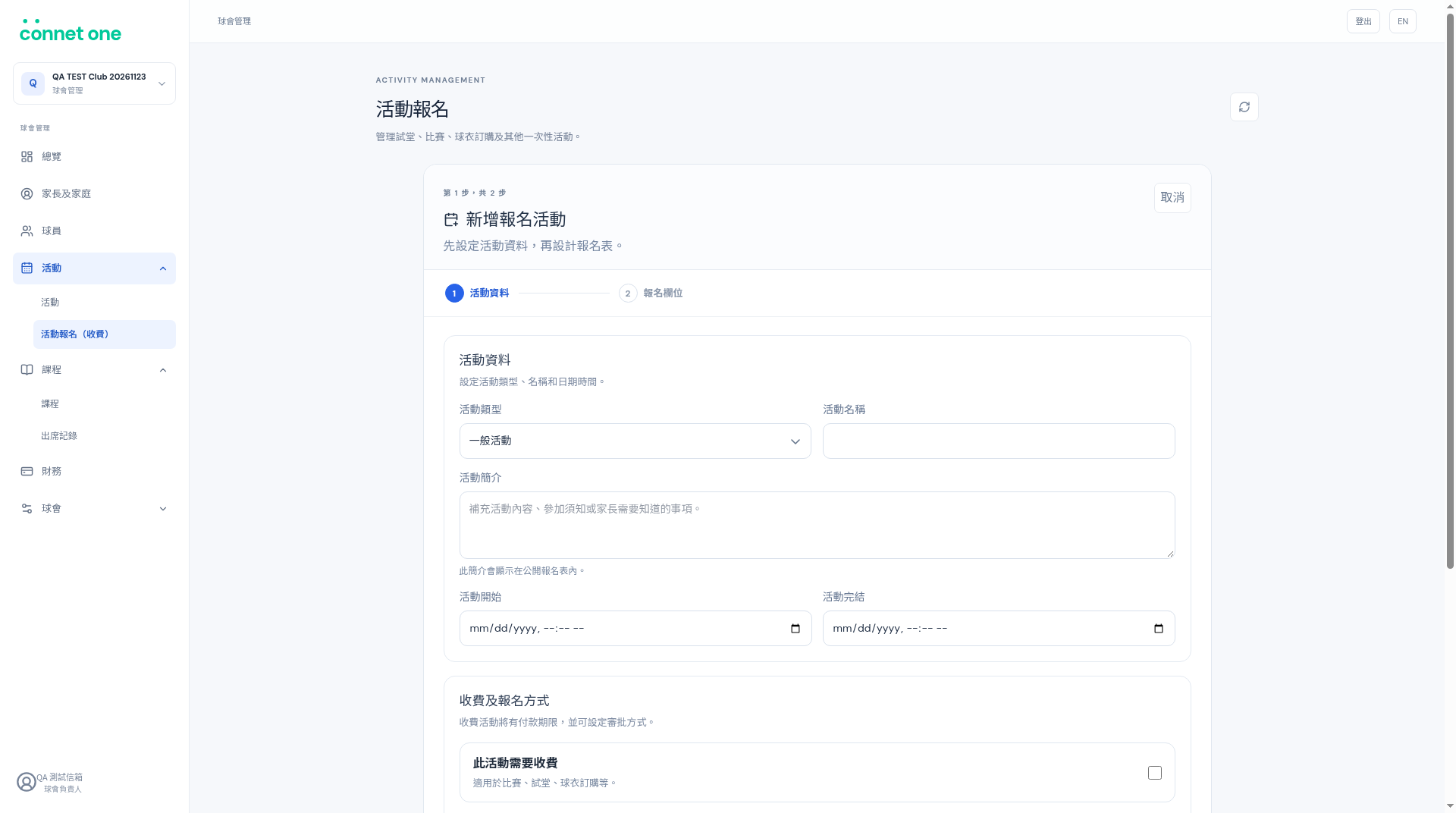
- Select Add activity enrolment. This is a two-step wizard, and the description is: "Set the activity details first, then design the enrolment form." The steps are: 1 Activity details, 2 Enrolment fields.
- In Activity details, fill in (description: "Set the activity type, name, date and time."):
- Activity type: defaults to General activity; there are also Paid match, Paid trial lesson, Kit order, and Study tour
- Activity name
- Activity introduction (description: "This introduction is shown on the public enrolment form."; the hint says you can add activity content, participation notes, or other information parents need to know.)
- Activity start and Activity end (the on-screen format is mm/dd/yyyy and a time)
- Under Fees and enrolment method, set the following (description: "Paid activities will have a payment deadline, and you can set an approval method."):
- Enable charges: you will see the heading This activity requires payment, and the description "Applies to matches, trial lessons, kit orders, and similar." This option is off by default. Tick it only when a charge is needed.
- Enrolment method: defaults to Accept automatically (description: "Accepted on submission; paid activities will send payment details."); there is also Accept after admin approval (description: "Parents are notified to pay only after approval.")
- Publish to the club portal: the description is "Let parents view and enrol from the public club portal." This option is ticked by default. If you do not intend to publish it now, clear the tick first.
- Select Next: enrolment fields to continue, or Cancel to close without creating it.
The field design for step 2 Enrolment fields is not yet documented in this manual. After you have confirmed that the step 1 details are correct, go on to the next step to finish the enrolment form and save it.
What you will see afterwards
After you finish and save, the enrolment activity appears in the In progress list, and you can then manage applications and payments here. If you ticked Publish to the club portal in step 1 and completed creation, parents can view and enrol from the public club portal.
Please note
Publish to the club portal is ticked by default. If you are not ready to publish, clear the tick before you select next or finish creating it. Enable charges is off by default; after you tick it, a charging flow begins, so confirm the activity type and enrolment method first.