
Invite staff
In Staff management you can view the staff list and invite someone to join by email.
Where to find this
In the left-hand menu, select Club, then Staff management.
The page heading is Staff management. The description is the same as on other data tables: "Data is read from the club database; parents and players will only see records they are authorised to view." Buttons at the top-right include: Reload, Export data, and Invite staff. You can use search and filters to view the list. If there are no staff yet, it shows No data yet.
How to invite staff
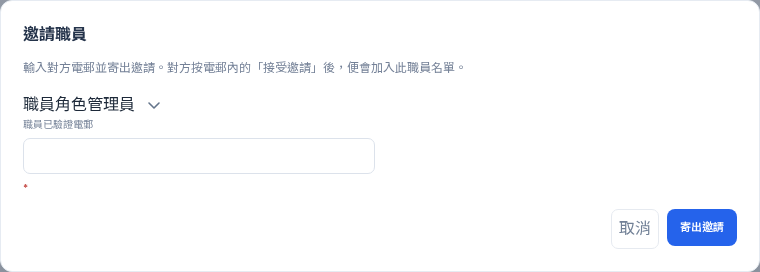
- Select Invite staff to open the Invite staff form.
- Read the description: "Enter the person's email and send the invitation. After they select Accept invitation in the email, they will be added to this staff list."
- In Staff role, choose a role. The options are: Coach, Accountant, and Admin. The default is Admin.
- In Staff verified email, enter the person's email (required *).
- After confirming the details are correct, select Send invitation. If you are not sending it yet, select Cancel.
What you will see afterwards
After you select Send invitation, the system sends an invitation to that email. After the person accepts, they will appear in this staff list.
Please note
Selecting Send invitation sends the email. Confirm that the role and email are correct before you send it.