
Add, edit and manage course classes
In Courses you can add classes, set fees, and manage that class's players, lessons and make-up lessons.
Where to find this
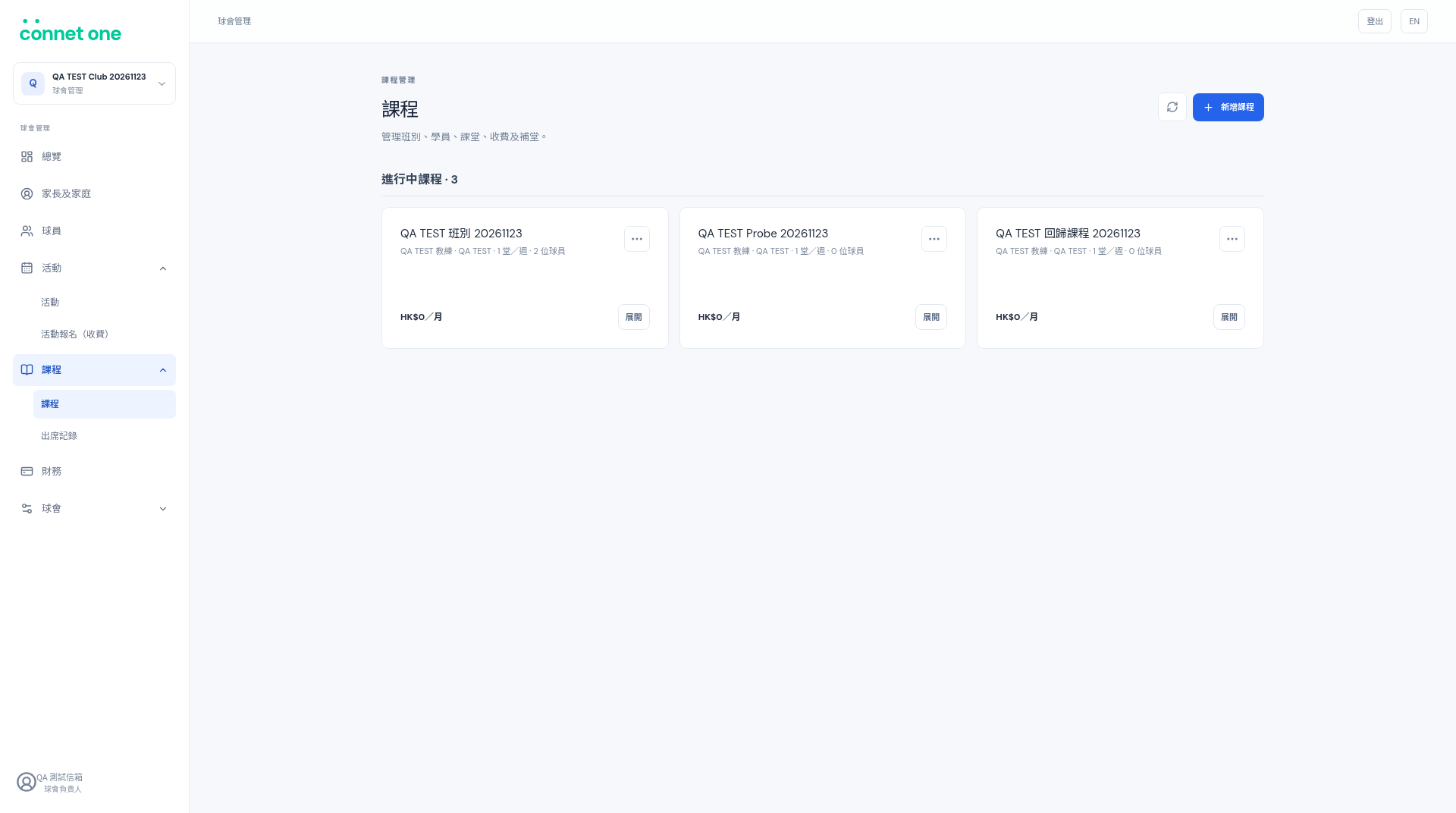
In the left-hand menu, select Courses, then the Courses sub-item.
The header breadcrumb is Course management, the heading is Courses, and the description is: "Manage classes, students, lessons, fees and make-up lessons." The buttons are Reload and Add course. In-progress classes are listed as cards, showing the class name, coach, sport, weekly lesson count, player count, monthly fee, plus Expand / collapse and More course actions.
How to add a course
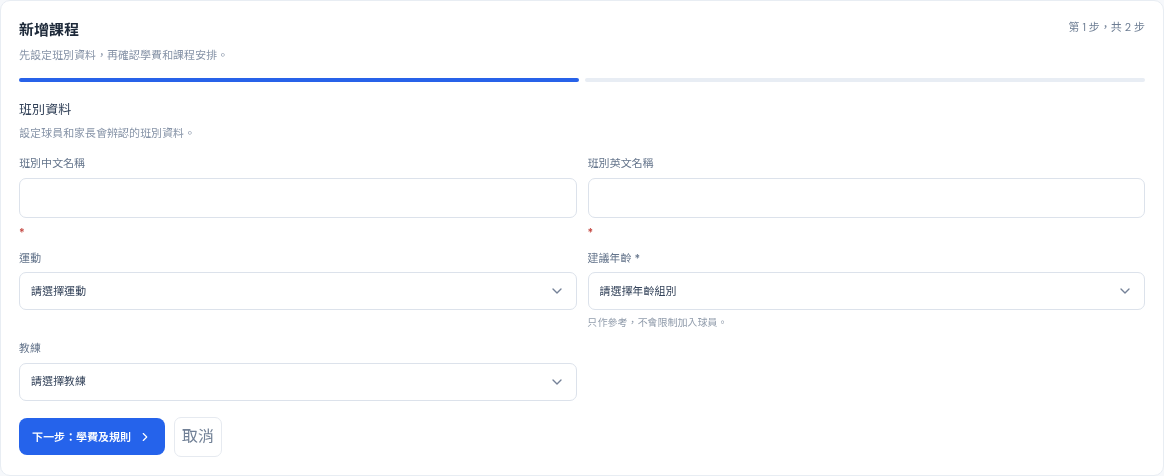
- Select Add course. The header shows Add course and Step 1 of 2, and the description is: "Set the class details first, then confirm the fees and course schedule."
- In step 1 Class details, fill in:
- Class Chinese name * and Class English name *
- Sport
- Suggested age *: choose an age group from the drop-down; do not leave it on Please select an age group. This field is required. The screen currently still shows this text under the field: "For reference only; it does not restrict which players can be added."
- Coach
- Select Next: fees and rules. If you have not yet chosen a suggested age, you will stay on step 1 and be prompted to choose a suggested age.
- In step 2, fill in the monthly fee, weekly lesson count, minutes per lesson, and so on (see step 2 under “How to edit a course” below). After confirming, save the course.
How to edit a course
- On that class card, select More course actions, then Edit course. The same menu also shows Stop course.
- The header may still show Cancel create (this wording is also used when editing). The description is: "Set the class details first, then confirm the fees and course schedule."
- Step 1 Class details is filled with the existing name, sport, suggested age and coach. Select Next: fees and rules to continue, or Cancel to leave.
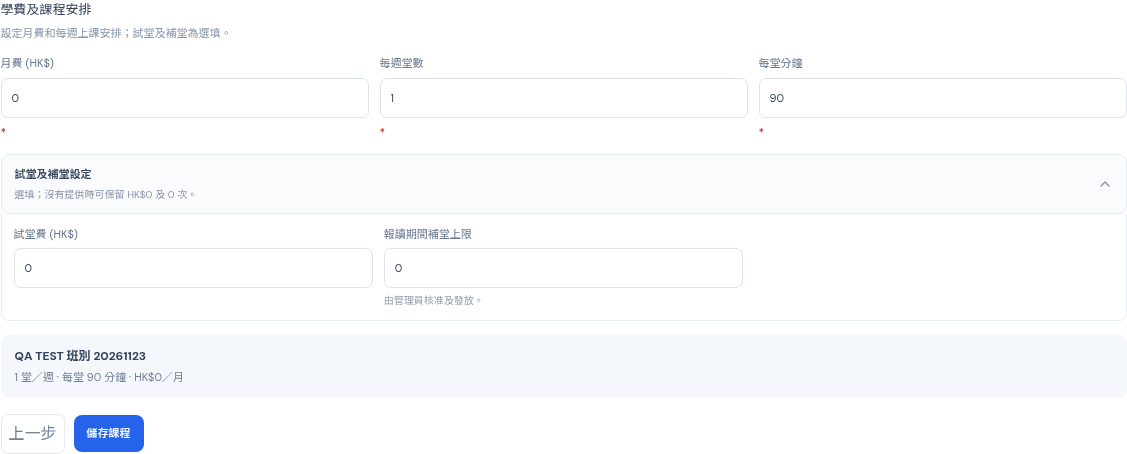
- The description for step 2 Fees and course schedule is: "Set the monthly fee and the weekly lesson schedule; trial lessons and make-up lessons are optional." Fill in:
- Monthly fee (HK$) *
- Lessons per week *
- Minutes per lesson *
- You can expand Trial and make-up settings (description: optional; if not offered, you can leave these as HK$0 and 0 times.): Trial fee (HK$), Make-up limit during enrolment (description: "Approved and issued by an admin.")
- The screen shows a summary, for example the lesson count, minutes and monthly fee. The buttons on this step are Back and Save course. To discard the changes, select Cancel create in the header; do not select Save course.
How to view class players, lessons and make-up lessons
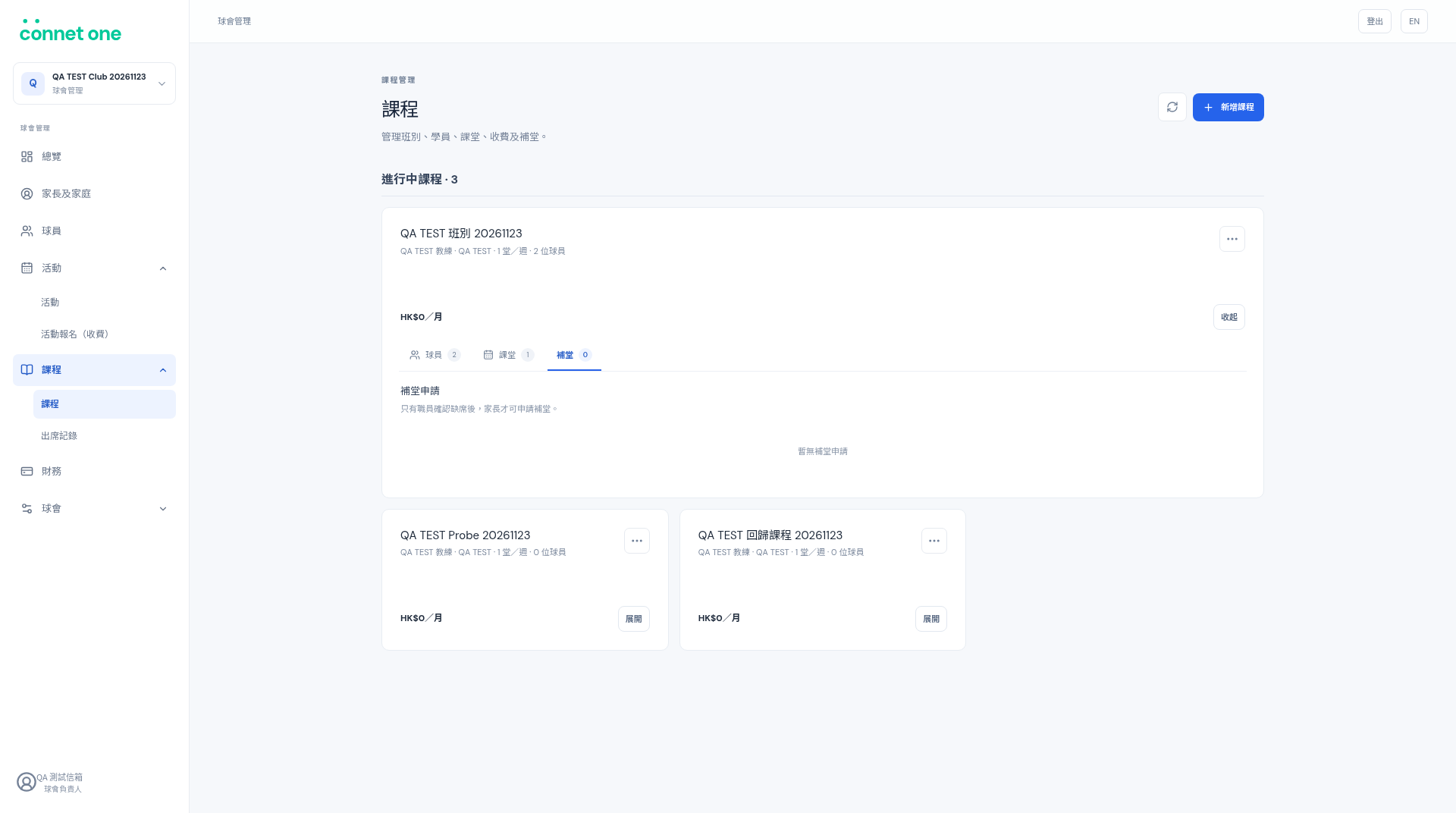
On the card, select Expand. The tab navigation heading is Course management, and you will see Players, Lessons, and Make-up lessons. The monthly fee is on the card and in step 2 of the edit wizard; there is no separate Fees tab.
Players
- The heading is Class players; the description is: "Select an age group first, then tick the players to add."
- First choose a group in 1. Select an age group, then tick players. If no one is available to select, it shows No players available to add, and the Add 0 players button is disabled.
- The enrolment type drop-down defaults to Official enrolment; there is also Trial and the corresponding fee.
- Players already in the class are listed below, and may be marked Trial. Each row shows Switch to official and Remove.
Lessons
- The heading is Lesson schedule; the description is: "The course's weekly lesson count is class information only; choose each lesson's date and time here."
- When adding a scheduled lesson, fill in: First lesson date, Start time, End time, Activity location (default Enter venue manually), Venue, and Repeat schedule (default Schedule once only; there are also Weekly and Every two weeks).
- Select Confirm schedule to finish that scheduling.
- Scheduled lessons are listed by month, showing the date, day of the week and time.
Make-up lessons
- The heading is Make-up requests; the description is: "Parents can request a make-up only after staff have confirmed an absence."
- If there are no requests, it shows No make-up requests yet. An Add make-up button is not shown on this page.
What you will see afterwards
After you save, the class appears in the In-progress courses list, showing the monthly fee and player count. After you expand the card, you can manage players, lessons and make-up lessons.
Please note
- You must choose Suggested age before you can go to the next step.
- For Stop course in More course actions, and for Switch to official and Remove in a player row, select them only after you have confirmed you have the right person or class. This manual does not describe the detailed results after these actions.