
Add a family and send a parent invitation
In Parents and families you can add family and parent details, view the parent record count, and later send or resend an invitation manually.
Where to find this
In the left-hand menu, select Parents and families.
The page heading is also Parents and families. Buttons include: Reload, Export data, and Add parent and family. At the top there is Applications pending approval, where you can select Reload applications. The table can be searched; Filter field options include: Name, Parent, Linked players, Parent record count, and Phone. The list columns are: Name, Parent, Linked players, Parent record count, Phone, and Actions.
Selecting the number under Parent record count opens a dialog titled Parent record count, which lists that family's parent names and emails; when you have finished looking, select Close. If Linked players is 0, that number button is disabled.
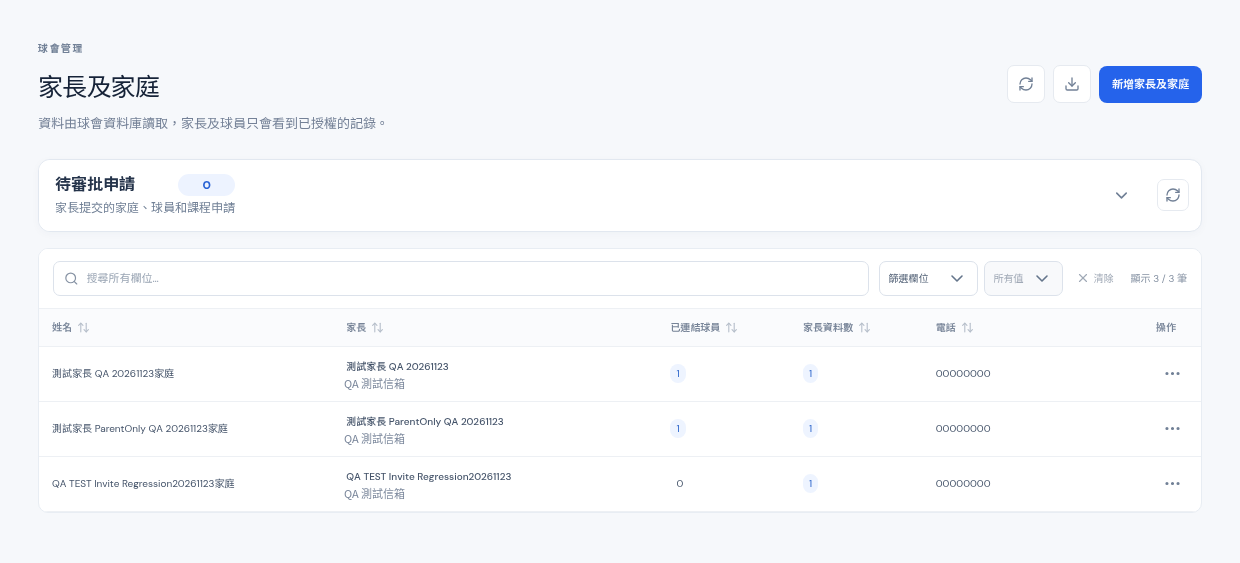
How to add a parent and family
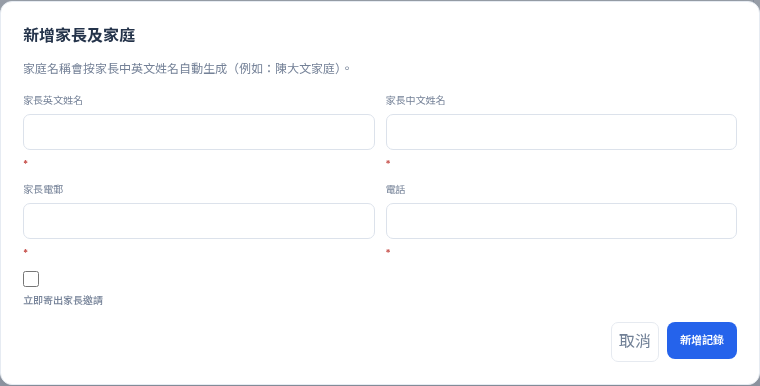
- Select Add parent and family.
- Read the description: "The family name is generated automatically from the parent's Chinese and English names (for example: Chan Tai Man family)."
- Fill in the required fields (all marked *): Parent English name, Parent Chinese name, Parent email, and Phone.
- The Send parent invitation now checkbox is unticked by default. Tick it yourself if you want the email sent immediately when you add the record; otherwise leave it unticked and send the invitation manually later.
- Select Add record.
After a successful add, a new row appears in the list, showing the automatically generated family name, parent name, linked player count, parent record count and phone number.
How to add a parent to an existing family
- In that family's row, select Open actions menu (the ⋯ on the right of the row).
- Select Add parent. The title will show as Add parent to {family name}.
- The description is: "If the person already has a verified Connet One account, they will be linked immediately; otherwise the system will link them automatically after they first sign in with this email."
- Fill in: English name *, Chinese name *, and Email *; Phone is optional.
- Send parent invitation now is likewise unticked by default. Tick it only when needed.
- Select Add parent to finish, or Cancel.
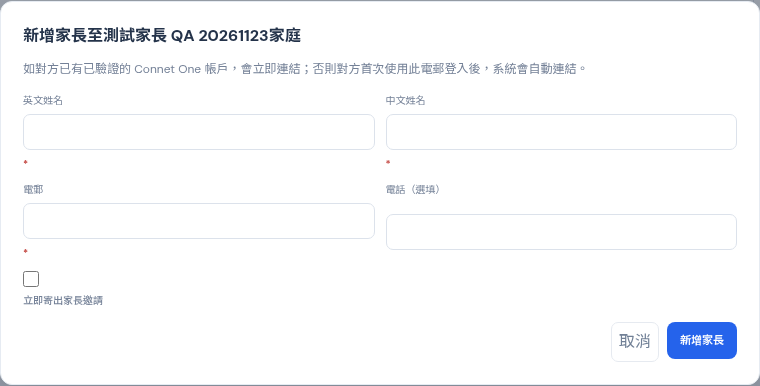
How to send or resend an invitation manually
If you did not tick Send parent invitation now when creating the record, you can send it later.
- In that family's row, select ⋯ to open the actions menu.
- Move the pointer to Parent invitation.
- Select the sub-item First parent: send / resend invitation. The screen does not show a separate confirmation dialog.
- The status first shows "Sending invitation…", then "Parent invitation sent." after it completes.
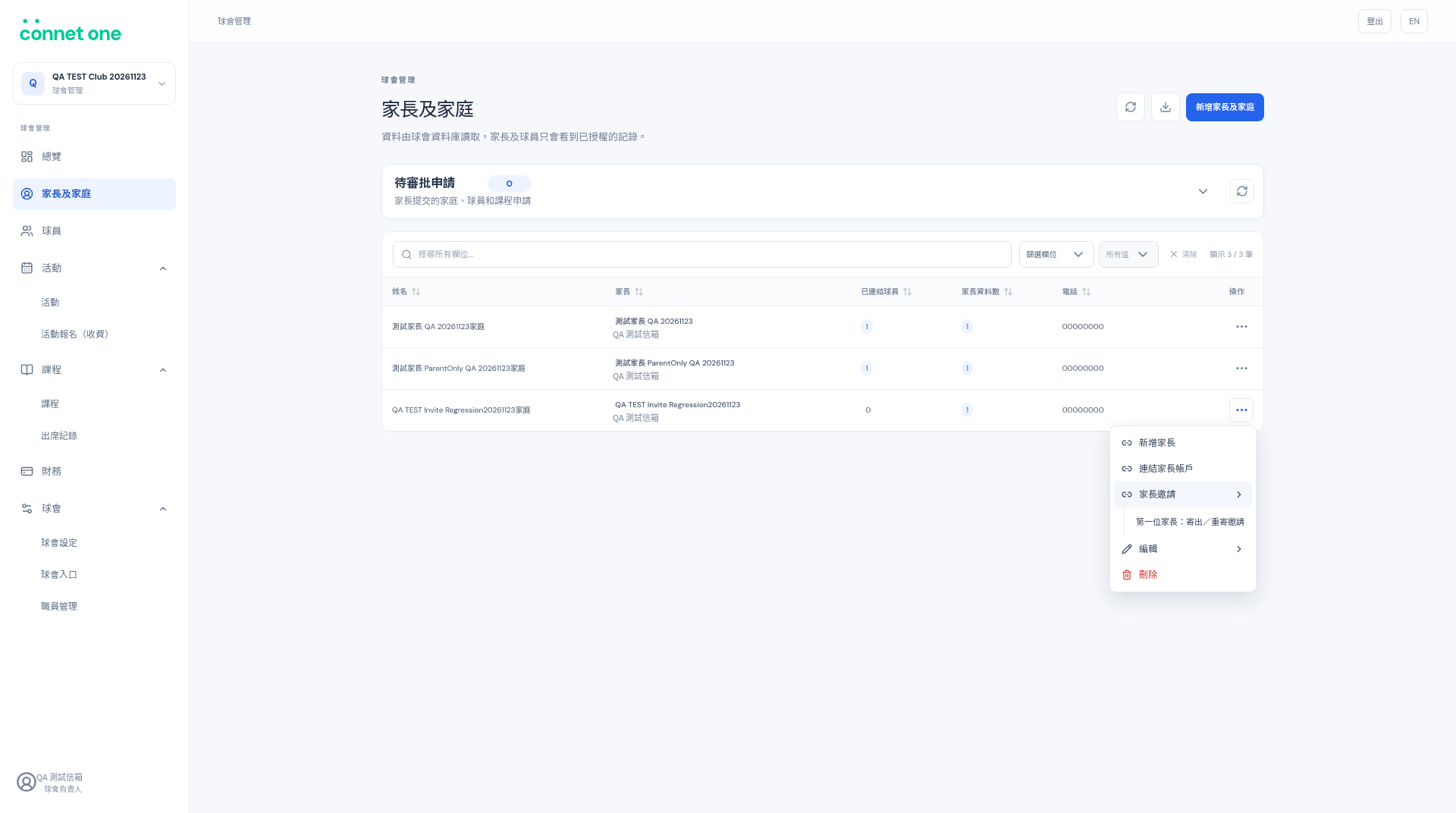
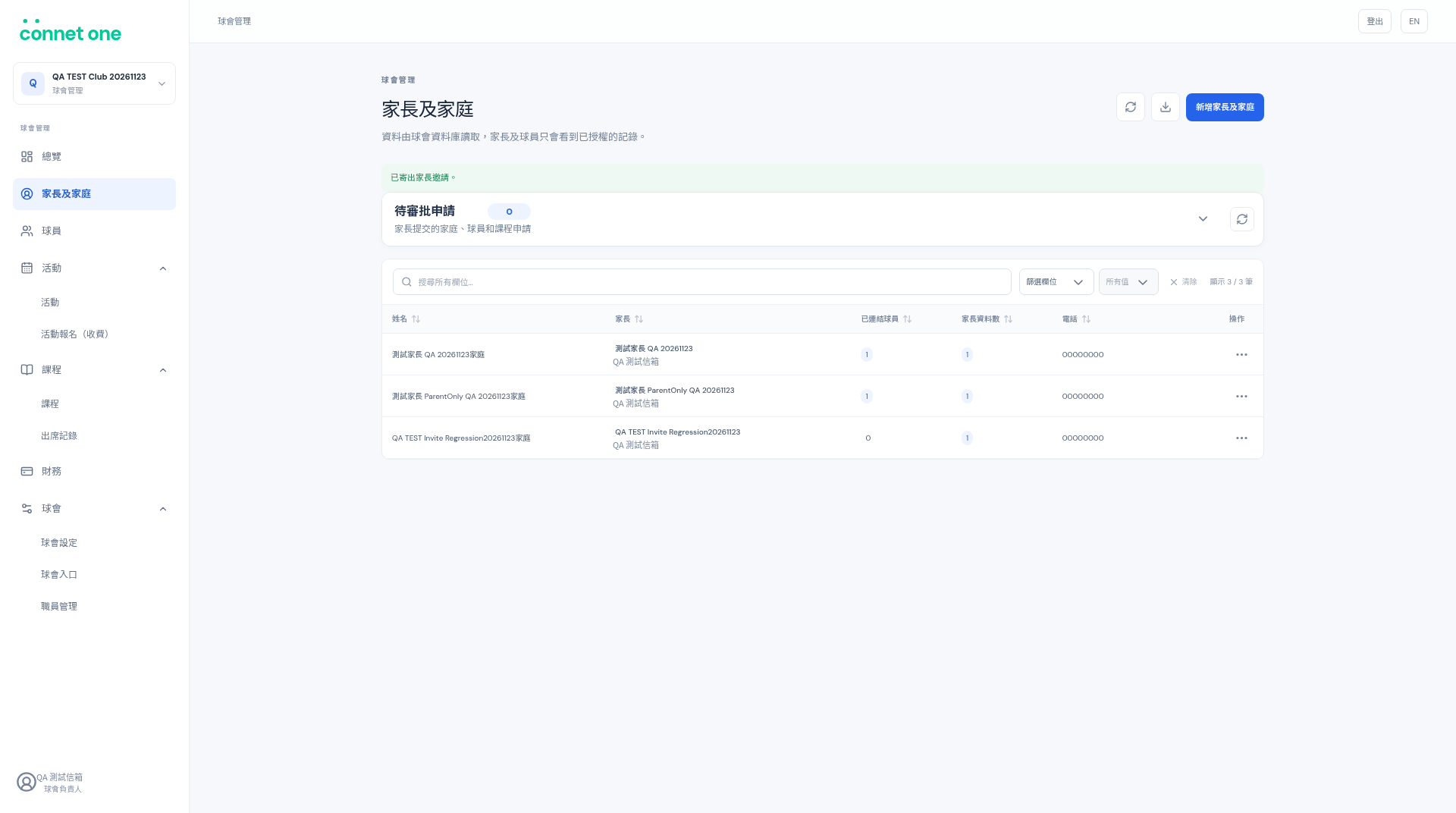
The same menu item is also used to resend. After a resend completes, the screen likewise shows "Parent invitation sent."
Please note
If invitations have been sent more than once, ask the parent to use the link in the most recent email.
Other row actions
The menu also includes: Link parent account, Edit, and Delete.
- Link parent account: There is no form and no confirmation dialog; selecting it runs immediately. The status changes from "Linking parent account…" to "Parent account linked." Confirm that you have the correct family before you select it.
- Edit → Family name: This opens the Edit family name dialog, where you can see Cancel and Save changes. If the dialog does not show a name input field, select Cancel, and do not select Save changes.
- Edit → 1. First parent's details: This item is visible in the menu. The fields on that form are not yet documented in this manual.
- Delete: Confirmation is required before deletion. If you are not sure, cancel.

What you will see afterwards
After you add a family, the row appears in the list immediately. If the invitation option was not ticked, the system will not send an email at the moment of creation; the other person receives the invitation email only after you manually select First parent: send / resend invitation.
Please note
Link parent account runs as soon as you select it. Avoid selecting it by mistake.