
Set roles and permissions
In Roles and permissions you can set which functions staff can view or manage. The owner keeps all permissions.
Where to find this
In the left-hand menu, select Club → Club settings, then open the Roles and permissions accordion. The description is: "Set the functions staff can view and manage; the owner keeps all permissions."
You will see an Add role button. The default role cards include: Coach, Accountant, and Admin. Each card shows the number of staff, a Default role label, and Edit permissions.
How to add a role
- Select Add role to open the Add role dialog.
- In Role name, enter a name.
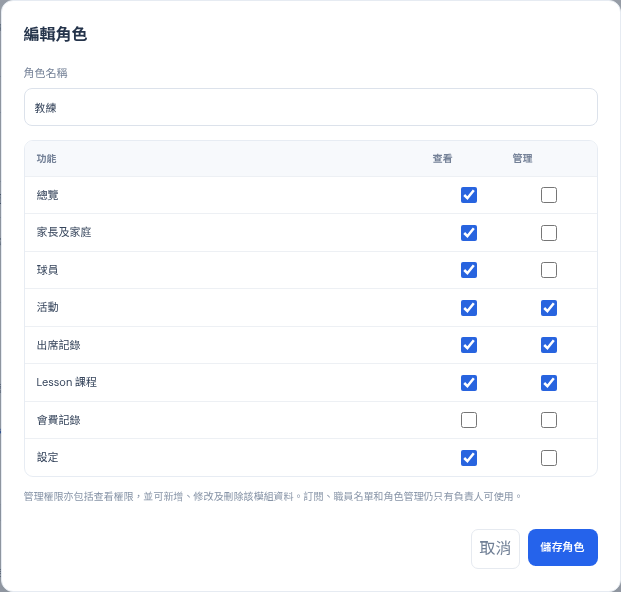
- In the permissions matrix, tick View or Manage for each function. The matrix columns are Function / View / Manage. The rows include: Overview, Parents and families, Players, Activities, Attendance records, Lesson courses, Fee records, and Settings.
- The description is: "Manage permission also includes view permission, and allows adding, editing and deleting data in that module. Subscriptions, the staff list and role management remain available only to the owner."
- Select Save role to finish, or Cancel to close without saving.
How to edit an existing role's permissions
- On that role card, select Edit permissions. Using Coach as an example, the dialog title is Edit role, and Role name is filled with the existing name.
- Tick or clear View and Manage for each function as needed.
- Select Save role to finish, or Cancel to discard the changes.
What you will see afterwards
After you save, that role uses the view and manage permissions you selected. When you invite staff, you can assign the person to one of these roles.
Please note
- The function row on the current screen still shows Lesson courses. Use that row to set course-related permissions.
- Subscriptions, the staff list and role management remain available only to the owner.