
View and add fee records
In Fee records you can view this month's amount receivable, amount paid and amount outstanding, and add a single fee record manually.
Where to find this
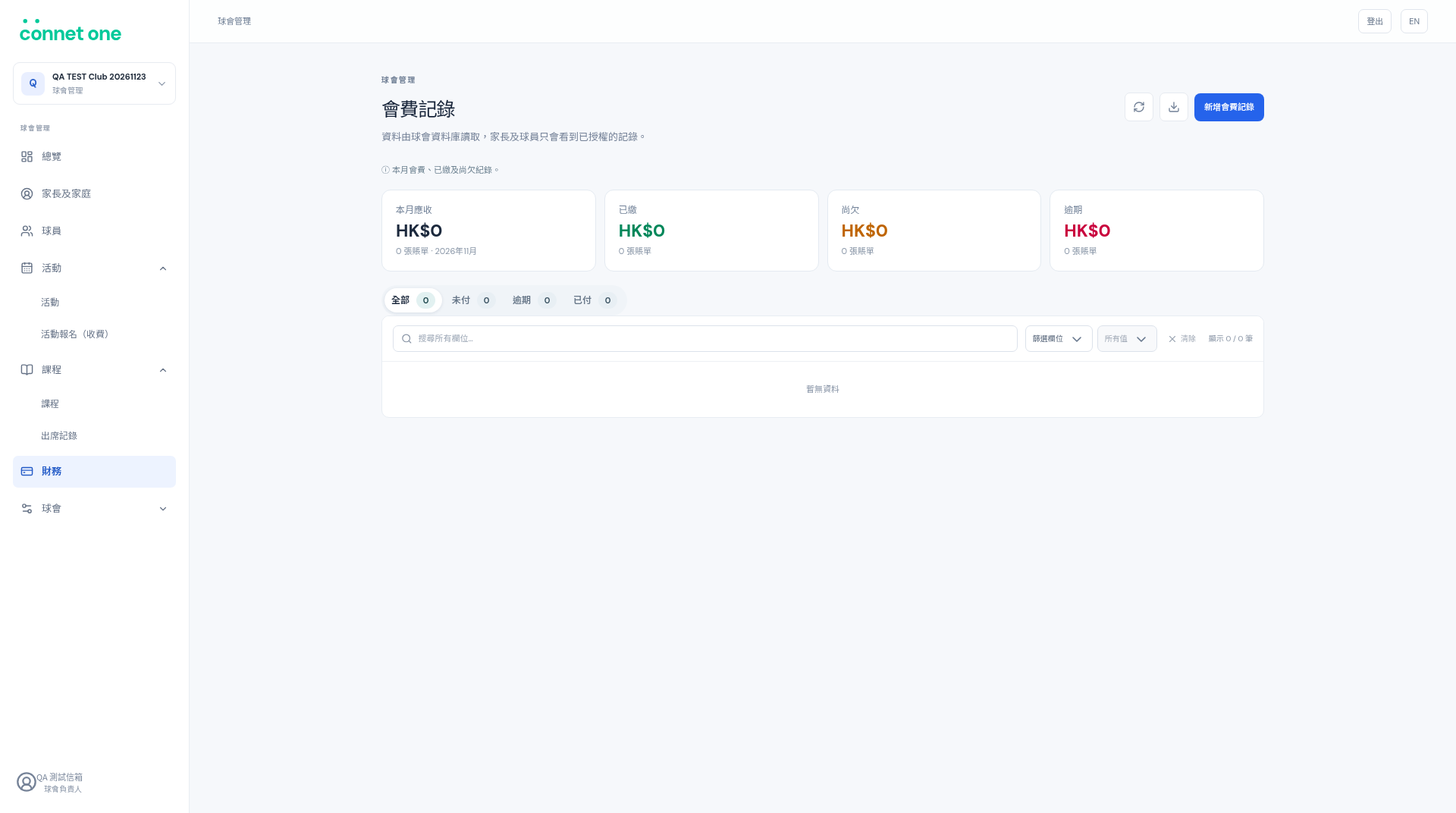
In the left-hand menu, select Finance. After you open it, the heading is Fee records. The page description is: "Data is read from the club database; parents and players will only see records they are authorised to view." The buttons are Reload, Export data, and Add fee record.
The overview description is: "ⓘ This month's fees, paid and outstanding records." (ⓘ This month's fees, paid and outstanding records.) You will see cards for: Receivable this month, Paid, Outstanding, and Overdue. The status tabs are: All, Unpaid, Overdue, and Paid. You can use search and filters to view the list. If there are no records, it shows No data yet.
If Monthly generation date in club settings is Disabled, this page may not show a Generate this month's fees button or a button for generating bills in a batch. To change the automatic generation rules, go to Set fee generation and payment methods.
How to add a fee record
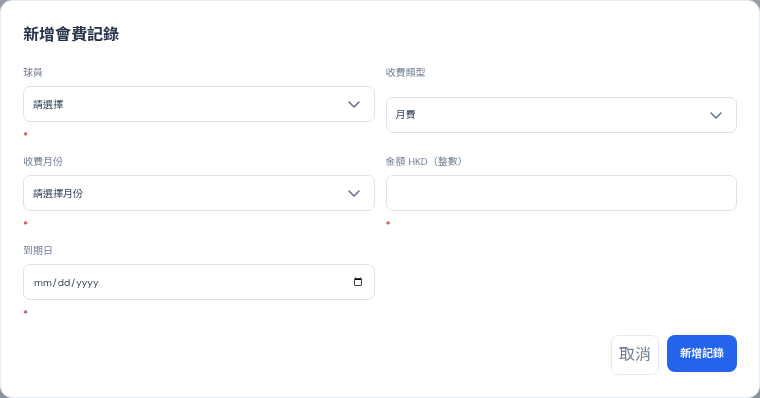
- Select Add fee record to open the Add fee record form.
- Fill in:
- Player *: choose from the drop-down
- Fee type: defaults to Monthly fee; there is also Trial fee
- Fee month *: choose a month
- Amount HKD (whole number) *
- Due date * (the on-screen date format is mm/dd/yyyy)
- After confirming the details are correct, select Add record. If you are not adding it yet, select Cancel.
What you will see afterwards
After you add it, the fee appears in the list and is counted in the overview as receivable or outstanding. Parents can also see the related bill in the Fee records they are authorised to view.
Please note
Selecting Add record creates billing data. Confirm the player, amount and due date first. This page describes adding a single record; automatic batch generation depends on the club finance settings.