
Set the club profile, prefix and logo
In Club settings you can change the club name, player ID prefix and logo, and copy the club-specific URL for parents to use.
Where to find this
In the left-hand menu, select Club, then Club settings.
The page heading is Club settings, and the description is "Manage club details, player IDs and activity types." The top-right has Reload. The page has five accordions: Club profile, Roles and permissions, Finance, Activity types, and Saved venues.
Open the Club profile accordion. The description is: "Set the club name, logo, dedicated URL and player IDs."
How to set the name, prefix and logo
- In Club name, enter or change the club name.
- In Player ID prefix, enter the prefix. The description is: "If the player ID is left blank, the system assigns a number automatically using the prefix, for example QA-0001."
- To change the logo, in Club logo select Choose image. The description is: "PNG, JPEG and WebP are supported, with a file size limit of 300 KB."
- Select the blue Save club profile button.
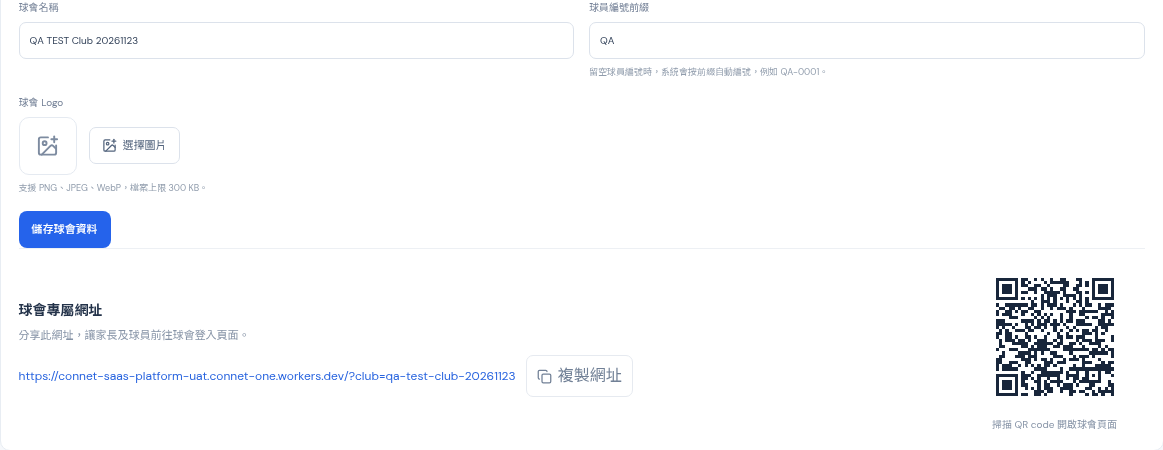
The same section also has a read-only Club-specific URL, with the description: "Share this URL so parents and players can open the club sign-in page." You can select Copy URL, or use the QR code beside it (the description is: Scan the QR code to open the club page).
What you will see afterwards
After you save, the club name, prefix and logo are used in the club profile and for automatic numbering. You can share the dedicated URL with parents directly.
Please note
- You must select Save club profile before changes to the name, prefix or logo are saved.
- This manual describes the Traditional Chinese screens.