
View, search and filter players
In Players you can view the basic details of players you are authorised to see, including their family and team.
Where to find this
In the left-hand menu, select Players. You can also select View players on the overview page.
How to view the player list
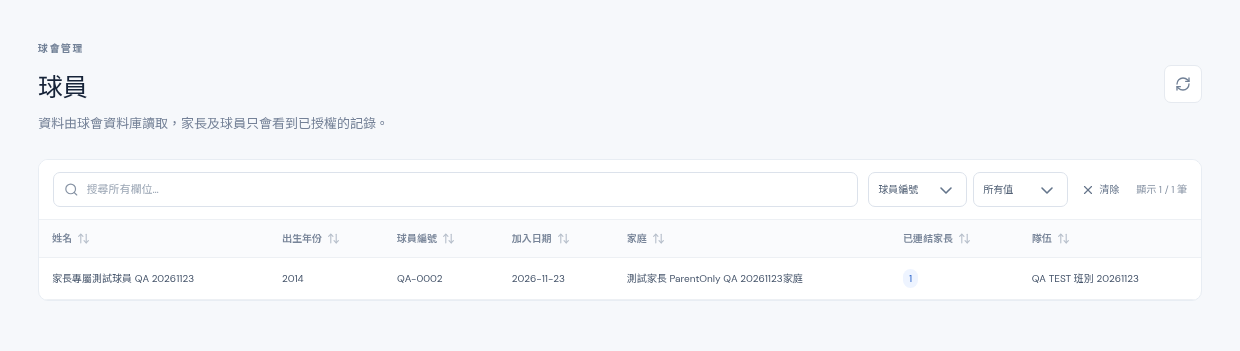
- After you open the page, the heading is Players. The page description is: "Data is read from the club database; parents and players will only see records they are authorised to view."
- The list columns include: Name, Year of birth, Player ID, Join date, Family, Linked parents, and Team.
- To refresh the screen, select the circular arrow button at the top-right.
- To search, enter a keyword in "Search all fields..", for example a name or player ID.
- To filter, select Filter field (a column may already be pre-selected, for example Player ID), then select All values to choose a condition. Select Clear to cancel the filter.
- Select the arrow beside a column name to sort by that column.
- Select the number under Linked parents to view details of how many parents are linked to that player.
What you will see afterwards
You will see the players you are authorised to view, along with their IDs, families and teams. "Showing × / × records" shows the number of records currently in the list. This page does not have an add-player button.
If you need to change details
Parents cannot add, change or delete player details here. To correct a name, year of birth, team or family link, contact the club.