
Accept an invitation and sign in
The first time you use the platform, enter through the invitation sent by the club. If you have already signed out later, you can request a login link by email on the sign-in page and then enter again.
First use: accept the invitation
- Wait for the club to create your parent record. After that is done, you will receive an invitation email.
- Open that email and select Accept invitation.
- After you enter the club, the account at the bottom-left shows Parent account. You can then use the left-hand menu to view family, players, activities and fees.
Please note
Open only the invitation the club sent to you. Invitation links have an expiry time, and can usually be used only once. If you do not receive the email, check your junk mail folder first, or contact the club to send the invitation again.
Signing in again after you have signed out
After you sign out, you return to the sign-in page.
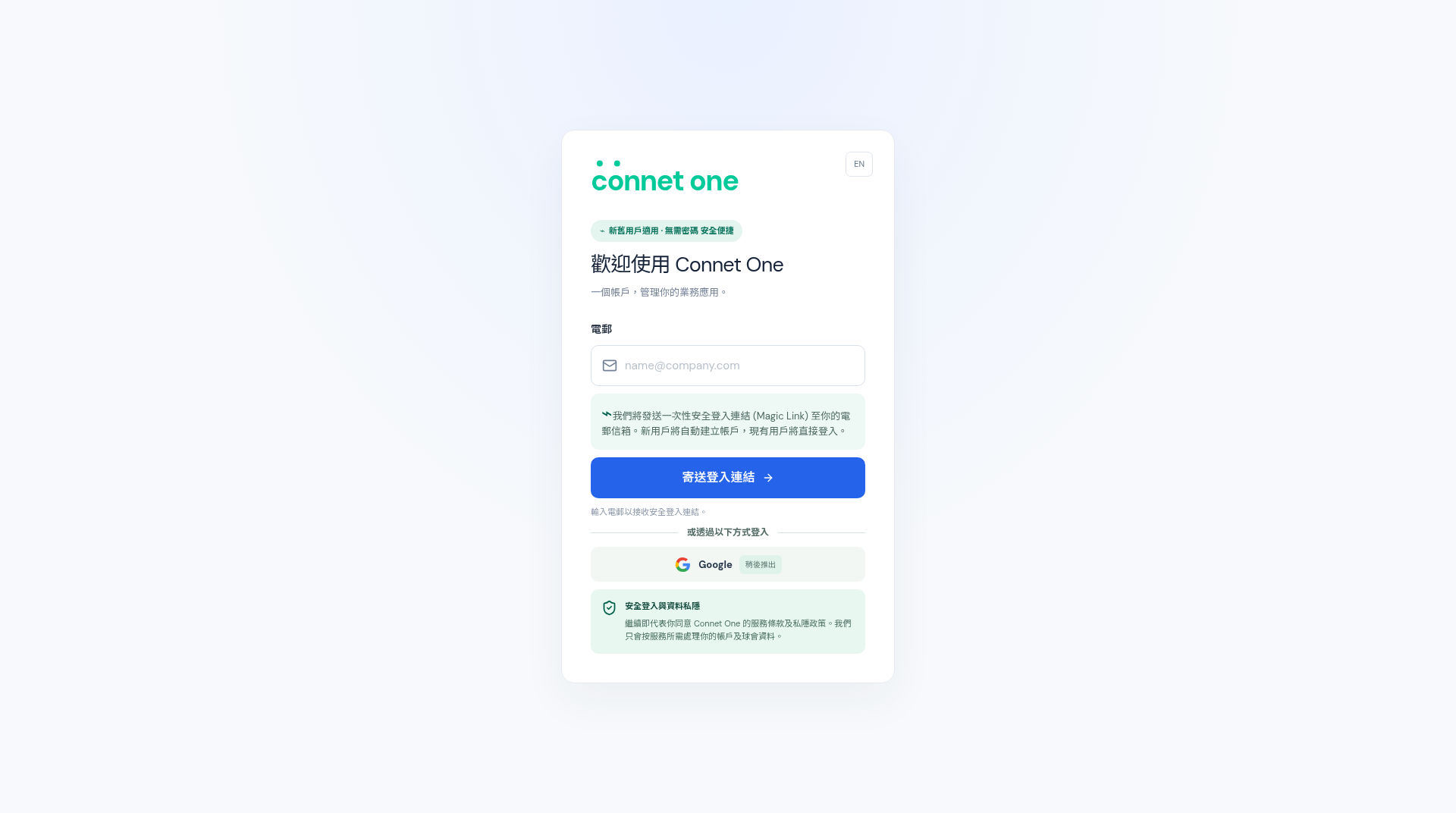
- Open the club's sign-in page.
- In Email, enter your email address.
- Select the blue Send login link button.
- Open the login link in your email inbox to return to the club screens.
The sign-in page explains: "The system will send a one-time secure login link to your email; a new user will have an account created automatically, and an existing user will be signed in directly."
Please note
- Google sign-in on the screen currently shows Coming soon. Please use the email login link first.
- If you do not receive the email, check your junk mail folder.