
View the activity calendar, list and details
In Activities you can view scheduled activities in a calendar or a list, and open a single activity's date, time, venue and coach details.
Where to find this
In the left-hand menu, select Activities, then the Activities sub-item.
How to use the calendar
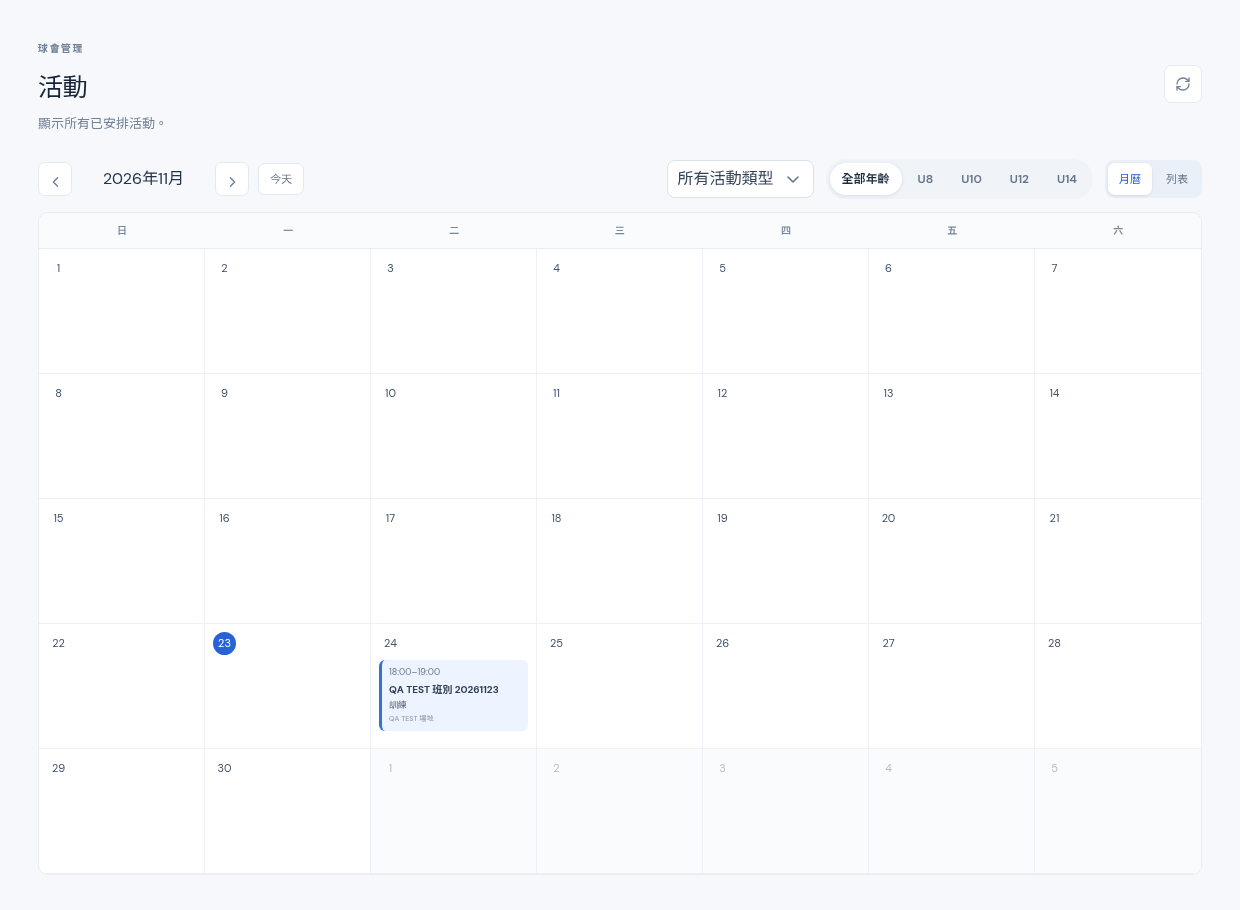
- After you open the page, the heading is Activities, and the description is "Show all scheduled activities."
- The default view is Calendar. Select < and > on either side of the month to change month; select Today to return to today in the current month.
- To view only one type of activity, select All activity types and choose a type.
- To view by age, you can select All ages, or age buttons such as U8, U10, U12 and U14.
- The calendar shows the activity's time, name or class, type and venue. Select that activity block to open the details.
- To refresh, select the circular arrow button at the top-right.
How to switch to the list view
- Select List at the top-right of the calendar to switch to the list view. To go back, select Calendar again.
- The list columns include: Activity type, Date, Start time, End time, Venue, Map link, Age group, Team, and Coach.
- You can search in "Search all fields..", or use Filter field and All values to filter. Select Clear to cancel the filter.
- Select the arrow beside a column name to sort by that column.

How to view activity details
- Select the activity block in the calendar, or open that activity's row in the list.
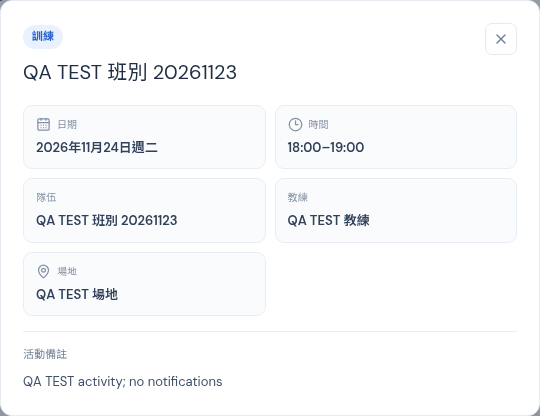
- The details window shows the activity type, name or class, plus Date, Time, Team, Coach, Venue and Activity notes.
- When you have finished looking, select × at the top-right to close it.
What you will see afterwards
You will know the activity's time, venue and the coach in charge. This page is for viewing; it does not have buttons to add or edit activities.
If you need to change an activity
To change an activity's time or venue, or to notify related parents, contact the club.